Friday, May 21, 2021

API Automation Using RestSharp [ Multipart/Form Data ]


Multipart/Form Data

A HTTP multipart request is a HTTP request that HTTP clients construct to send files and data over to a HTTP Server. It is commonly used by browsers and HTTP clients to upload files to the server.

Swagger Link : https://petstore.swagger.io/#/

Code :  

 [TestClass]
    public class DemoPostOperations
  {
    [Test]
        public void MultipartFormData()
        {
            var client = new RestClient("https://petstore.swagger.io/v2/");
            client.Authenticator = new HttpBasicAuthenticator("api_key", "****");
            var request = new RestRequest("pet/10/uploadImage", Method.POST);
            
            request.AddHeader("Content-Type", "multipart/form-data");
            request.AddHeader("Accept", "application/json");

            request.AddParameter("additionalMetadata", "abc123");
            request.AddFile("file", @"C:\Users\Admin\source\repos\WebserviceAutomation\WebserviceAutomation\Post Operations\Screenshot_1.jpg");

            IRestResponse response = client.Execute(request);
            var resonseContent = response.Content;

        }
 }


Response Body : 

{"code":200,"type":"unknown","message":"additionalMetadata: abc123\nFile uploaded to ./Screenshot_1.jpg, 18091 bytes"}

Sunday, May 2, 2021

API Automation Using HttpClient [GET Operation]


HttpClient Class


Its a class for sending Http Request and receiving Http  Response from a resource identified by a URI 


Basic GET Operation using  httpclient 

[TestClass]
    public class Tests
    {
        private string getUrl = "https://reqres.in/api/users?page=2";
        [Test]
        public void TestMethod1()
        {

            // step 1. To  create http client 
            HttpClient httpClient = new HttpClient();

            //step for create the request and execute the request 
            Task<HttpResponseMessage> responseMessage = httpClient.GetAsync(getUrl);
            HttpResponseMessage httpResponseMessage = responseMessage.Result;
            Console.WriteLine(httpResponseMessage.ToString());

            //for printing the statusCode
            HttpStatusCode httpStatusCode = httpResponseMessage.StatusCode;
            Console.WriteLine("StatusCode=>{0}", httpStatusCode);
            Console.WriteLine("StatusCode=>{0}", (int)httpStatusCode);

            //for printing the content
            HttpContent httpContent = httpResponseMessage.Content;
            Task<string> ResponseContentData = httpContent.ReadAsStringAsync();
            string responseData = ResponseContentData.Result;

            Console.WriteLine(responseData);
            // step for closing the connection
            httpClient.Dispose();

        }
}

Monday, April 19, 2021

API Automation Using RestSharp [ Deserialization ]


How to Deserialize JSON Response to Class with RestSharp?


 The term Deserialization here means the conversion from the String form of JSON to a Class form. This is also called Object Representation of structured data.

  • Add Newtonsoft.json to the project via Nuget Package Manager => Manage Nuget packages for Solutions.
  • Create a model class of the json response like this

 public class Users
    {

        public string name { get; set; }
        public string job { get; set; }
        public string id { get; set; }
        public DateTime createdAt { get; set; }

    }
  • Make appropriate changes in the code like this
 public class DemoGetTest
    {
        private string BaseUrl = "https://reqres.in/";

        [Test]
        public void DeserializingJsonResponse()
        {
            var restClient = new RestClient(BaseUrl);
            var restRequest = new RestRequest("/api/users?page=2", Method.GET);
            restRequest.AddHeader("Accept", "application/json");
            IRestResponse response = restClient.Execute(restRequest);
            var content = response.Content;

            if (response.IsSuccessful)
            {
                Console.WriteLine("Status Code " + response.StatusCode);
                Console.WriteLine("Response Content " + response.Content);

            }

            //De-serialisation of Response Data 


            Root json = JsonConvert.DeserializeObject<Users>(content);
if(json.data[0].first_name== "Michael") { Console.WriteLine("operation passed "); } var jsonobject=JObject.Parse(content); int pagevalue =(int)jsonobject.GetValue("page"); } }

Monday, April 5, 2021

API Automation Using RestSharp Part II [ Method : GET ]


Uploading: 160221 of 160221 bytes uploaded.
How to Write GET API Test Using RestSharp?
  1. Create a test class DemoGetTest and test method Get Operations() in the project.
Operations to be  Performed : 
  • Create request from client and specify the HTTP Method type.
  • Send the Request to the Server.
  • Get the Response back from the server.
  • Validate returned Response’s Body.

Code Snippet :

 public class DemoGetTest
    {
        private string BaseUrl = "https://reqres.in/";

        [Test]
        public void GetOperationUsingRestSharp()
        {
            //Creating Client Connection
            IRestClient restClient = new RestClient(BaseUrl);

            //Creating Request from Client to Server
            IRestRequest restRequest = new RestRequest("/api/users?page=2", Method.GET);

            restRequest.AddHeader("Accept", "application/json");

            //Execute Request on Server
            IRestResponse response = restClient.Execute(restRequest);
            var content = response.Content;

            if (response.IsSuccessful)
            {
                Console.WriteLine("Status Code " + response.StatusCode);
                Console.WriteLine("Response Content " + response.Content);
                Console.WriteLine("Response Content " + response.Headers);
                //Console.WriteLine(restResponse.IsSuccessful);
                //Console.WriteLine(restResponse.StatusCode);
            }
            else
            {
                Console.WriteLine("Operation Failed");
                //Console.WriteLine(restResponse.ErrorMessage);
                //Console.WriteLine(restResponse.ErrorException); 
            }

            Assert.AreEqual(200, (int)response.StatusCode);

            //Verification of response
            if (!content.Contains("page"))
            {
                Assert.Fail("information is not displayed");
            }
        }
}

Saturday, January 30, 2021

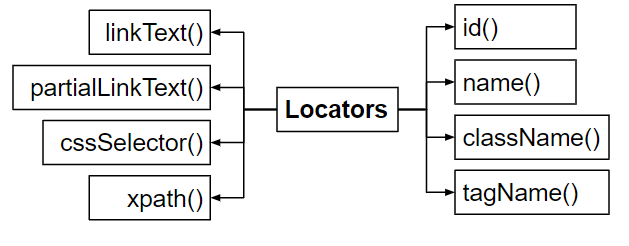
SELENIUM LOCATORS- Part I


 SELENIUM LOCATORS


  • They are used for identify the web elements uniquely within a webpage .
  • we can identify the web elements uniquely  using different types of locators.

Find Web Elements using Selenium WebDriver - GeeksforGeeks

Saturday, September 26, 2020

Robot Framework Test Automation [Part-I]


                   Selenium Python Robot Framework | Selenium Master        

ROBOT FRAMEWORK

  • Robot Framework is a generic  test automation framework mainly used for  acceptance testing 
  • It mainly utilizes the keyword driven testing approach .
  • Provides test Libraries  implemented either with the python or java and users can create  higher level keywords from existing ones.

Install python :

        you can download the latest python version from https://www.python.org/downloads.After                 `   installing the python set the path of  script folder  in python to the enviornmental variables.

          For Example :

            C:\Users\Admin\AppData\Local\Programs\Python\Python38-32\Scripts. After that go to                         command Prompt  and give the following commands and check the python is properly installed.

Install Pycharm :

         you can download the latest pycharm version from https://www.jetbrains.com/pycharm/ and                  download  the community edition.

Install Selenium :

        For installing selenium give the following command on  the command Prompt pip install                  selenium.


Install Robot framework:

  •       For installing robot framework give the following command to command Prompt
                pip install robotframework 
                
  •         After installing the robot framework we can check the details  of  framework by      using the command pip show robotframework
  •      For upgrading the framework we use pip install --upgrade robotframework