Tuesday, November 16, 2021

Find Broken Images in UI (Selenium & Rest Sharp )


Find Broken Images in UI


Broken image is a link/image that does not show up as a picture, clicking upon which takes the end-user to a defunct picture. The user encounters a 404 Error when clicked on the broken image
.

The code written to solve the issue using selenium and Rest sharp to interact with the broken links .


Code :

  • The details of the images present on the page are fetched by locating the WebElements with img tag
  • Using img.GetAttribute("src") we are fetching the URI and executing the URI using the Restsharp library to get the statuscode which is success or not found 


using OpenQA.Selenium;
using OpenQA.Selenium.Remote;
using OpenQA.Selenium.Chrome;
using System.Threading;
using System.Collections.Generic;
using System.Linq;
using System.Net;
using OpenQA.Selenium.Remote;
using System.Threading;
using System.Net.Http;
using System.Threading.Tasks;
using WebDriverManager;
using WebDriverManager.DriverConfigs.Impl;
using RestSharp;

namespace UI.TESTCASES.Helper

{

    public class BrokenImageFinder

    {

        // selenium Webdriver Initialization 

        IWebDriver driver;

        [Test]

        public async Task LT_Broken_Images_Test()

        {

            int broken_images = 0;

            String test_url = "https://the-internet.herokuapp.com/broken_images";

            // WebdriverManager Implementation that will download the respective chrome version  

            new DriverManager().SetUpDriver(new ChromeConfig());

            driver = new ChromeDriver();

            driver.Manage().Window.Maximize();

            driver.Navigate().GoToUrl(test_url);

            var image_list = driver.FindElements(By.TagName("img"));

            /* Loop through all the images */

            foreach (var img in image_list)

            {

                var img1 = img.GetAttribute("src");

                Thread.Sleep(3000);

                try

                {

                    RestClient client = new RestClient(img1);

                    RestRequest request = new RestRequest(Method.GET);

                    var response = client.Execute(request);

                    if (response.StatusCode == HttpStatusCode.OK)

                    {

                        Console.WriteLine("Image at the link " + img.GetAttribute("src") + " is OK, status is "

                                + response.StatusCode);

                    }

                    else

                    {

                        Console.WriteLine("Image at the link " + img.GetAttribute("src") + " is Broken, status is "

                            + response.StatusCode);

                        broken_images++;

                    }

                }

                catch (Exception ex)

                {

                    if ((ex is ArgumentNullException) ||

                       (ex is NotSupportedException))

                    {

                        System.Console.WriteLine("Exception occured\n");

                    }

                }

            }

            /* Perform wait to check the output */

            System.Threading.Thread.Sleep(2000);

            Console.WriteLine("\nThe page " + test_url + " has " + broken_images + " broken images");

        }

    }

}


Output : 


Tuesday, July 13, 2021

Create Self Hosted Agent for Azure Pipelines


1. Create an Account on Azure DevOps

Navigate to  the Url https://azure.microsoft.com/en-in/services/devops/ login with your Microsoft Account or create new one .


2. Create an Organization 

Click on New Organization give name for the Organization click continue 


3. Create a New Project

For creating a new project click on the New Projectgive the project name and select private or public depending on the requirement and click Create button. You can push the code to the created project repository !

4. Setting Up  Self Hosted Agent ( Personal computer / VM )

Go to Organization settings => Agent Pools => click on Add Pool ,you can setup the agent in the existing default pool also . select pool type as self -hosted 
give a name for the pool and click create button 


your pool will be listed with the existing pools with the given name .


 click on the pool => click New Agent => click Download the Agent 
create an Agent folder in the PC and extract the zip file in the Agent folder.


For setting up the agent you need  PAT ( Personal Access Token) , for that go to User Settings => click personal access token 


Enter the  details to generate the  token and store it some where 


Open PowerShell with administrator access and execute the command 

PS C:\WINDOWS\system32> cd C:\Agent
PS C:\Agent> .\config.cmd


1. you need to  give the Server URL : https://dev.azure.com/<ORGANISATION NAME>

2. Enter the   Personal Access Token

3. Enter  the  name of the agent pool that we created 

4. Enter a name for the agent 

5.  Give No  if you don't want to run it as a service .


Agent is created . You can double click run.cmd for  making it as online you can give the  name of Agent in the Yaml file or the classic editor for using it .

Example 

# ASP.NET Core (.NET Framework)
# Build and test ASP.NET Core projects targeting the full .NET Framework.
# Add steps that publish symbols, save build artifacts, and more:
# https://docs.microsoft.com/azure/devops/pipelines/languages/dotnet-core

trigger:
- master

pool:  LocalPool


variables:
  solution: '**/*.sln'
  buildPlatform: 'Any CPU'
  buildConfiguration: 'Release'

steps:
- task: NuGetToolInstaller@1

- task: NuGetCommand@2
  inputs:
    restoreSolution: '$(solution)'

- task: VSBuild@1
  inputs:
    solution: '$(solution)'
    msbuildArgs: '/p:DeployOnBuild=true /p:WebPublishMethod=Package /p:PackageAsSingleFile=true /p:SkipInvalidConfigurations=true /p:DesktopBuildPackageLocation="$(build.artifactStagingDirectory)\WebApp.zip" /p:DeployIisAppPath="Default Web Site"'
    platform: '$(buildPlatform)'
    configuration: '$(buildConfiguration)'

Friday, May 21, 2021

API Automation Using RestSharp [ Multipart/Form Data ]


Multipart/Form Data

A HTTP multipart request is a HTTP request that HTTP clients construct to send files and data over to a HTTP Server. It is commonly used by browsers and HTTP clients to upload files to the server.

Swagger Link : https://petstore.swagger.io/#/

Code :  

 [TestClass]
    public class DemoPostOperations
  {
    [Test]
        public void MultipartFormData()
        {
            var client = new RestClient("https://petstore.swagger.io/v2/");
            client.Authenticator = new HttpBasicAuthenticator("api_key", "****");
            var request = new RestRequest("pet/10/uploadImage", Method.POST);
            
            request.AddHeader("Content-Type", "multipart/form-data");
            request.AddHeader("Accept", "application/json");

            request.AddParameter("additionalMetadata", "abc123");
            request.AddFile("file", @"C:\Users\Admin\source\repos\WebserviceAutomation\WebserviceAutomation\Post Operations\Screenshot_1.jpg");

            IRestResponse response = client.Execute(request);
            var resonseContent = response.Content;

        }
 }


Response Body : 

{"code":200,"type":"unknown","message":"additionalMetadata: abc123\nFile uploaded to ./Screenshot_1.jpg, 18091 bytes"}

Sunday, May 2, 2021

API Automation Using HttpClient [GET Operation]


HttpClient Class


Its a class for sending Http Request and receiving Http  Response from a resource identified by a URI 


Basic GET Operation using  httpclient 

[TestClass]
    public class Tests
    {
        private string getUrl = "https://reqres.in/api/users?page=2";
        [Test]
        public void TestMethod1()
        {

            // step 1. To  create http client 
            HttpClient httpClient = new HttpClient();

            //step for create the request and execute the request 
            Task<HttpResponseMessage> responseMessage = httpClient.GetAsync(getUrl);
            HttpResponseMessage httpResponseMessage = responseMessage.Result;
            Console.WriteLine(httpResponseMessage.ToString());

            //for printing the statusCode
            HttpStatusCode httpStatusCode = httpResponseMessage.StatusCode;
            Console.WriteLine("StatusCode=>{0}", httpStatusCode);
            Console.WriteLine("StatusCode=>{0}", (int)httpStatusCode);

            //for printing the content
            HttpContent httpContent = httpResponseMessage.Content;
            Task<string> ResponseContentData = httpContent.ReadAsStringAsync();
            string responseData = ResponseContentData.Result;

            Console.WriteLine(responseData);
            // step for closing the connection
            httpClient.Dispose();

        }
}

Monday, April 19, 2021

API Automation Using RestSharp [ Deserialization ]


How to Deserialize JSON Response to Class with RestSharp?


 The term Deserialization here means the conversion from the String form of JSON to a Class form. This is also called Object Representation of structured data.

  • Add Newtonsoft.json to the project via Nuget Package Manager => Manage Nuget packages for Solutions.
  • Create a model class of the json response like this

 public class Users
    {

        public string name { get; set; }
        public string job { get; set; }
        public string id { get; set; }
        public DateTime createdAt { get; set; }

    }
  • Make appropriate changes in the code like this
 public class DemoGetTest
    {
        private string BaseUrl = "https://reqres.in/";

        [Test]
        public void DeserializingJsonResponse()
        {
            var restClient = new RestClient(BaseUrl);
            var restRequest = new RestRequest("/api/users?page=2", Method.GET);
            restRequest.AddHeader("Accept", "application/json");
            IRestResponse response = restClient.Execute(restRequest);
            var content = response.Content;

            if (response.IsSuccessful)
            {
                Console.WriteLine("Status Code " + response.StatusCode);
                Console.WriteLine("Response Content " + response.Content);

            }

            //De-serialisation of Response Data 


            Root json = JsonConvert.DeserializeObject<Users>(content);
if(json.data[0].first_name== "Michael") { Console.WriteLine("operation passed "); } var jsonobject=JObject.Parse(content); int pagevalue =(int)jsonobject.GetValue("page"); } }

Monday, April 5, 2021

API Automation Using RestSharp Part II [ Method : GET ]


Uploading: 160221 of 160221 bytes uploaded.
How to Write GET API Test Using RestSharp?
  1. Create a test class DemoGetTest and test method Get Operations() in the project.
Operations to be  Performed : 
  • Create request from client and specify the HTTP Method type.
  • Send the Request to the Server.
  • Get the Response back from the server.
  • Validate returned Response’s Body.

Code Snippet :

 public class DemoGetTest
    {
        private string BaseUrl = "https://reqres.in/";

        [Test]
        public void GetOperationUsingRestSharp()
        {
            //Creating Client Connection
            IRestClient restClient = new RestClient(BaseUrl);

            //Creating Request from Client to Server
            IRestRequest restRequest = new RestRequest("/api/users?page=2", Method.GET);

            restRequest.AddHeader("Accept", "application/json");

            //Execute Request on Server
            IRestResponse response = restClient.Execute(restRequest);
            var content = response.Content;

            if (response.IsSuccessful)
            {
                Console.WriteLine("Status Code " + response.StatusCode);
                Console.WriteLine("Response Content " + response.Content);
                Console.WriteLine("Response Content " + response.Headers);
                //Console.WriteLine(restResponse.IsSuccessful);
                //Console.WriteLine(restResponse.StatusCode);
            }
            else
            {
                Console.WriteLine("Operation Failed");
                //Console.WriteLine(restResponse.ErrorMessage);
                //Console.WriteLine(restResponse.ErrorException); 
            }

            Assert.AreEqual(200, (int)response.StatusCode);

            //Verification of response
            if (!content.Contains("page"))
            {
                Assert.Fail("information is not displayed");
            }
        }
}

Saturday, January 30, 2021

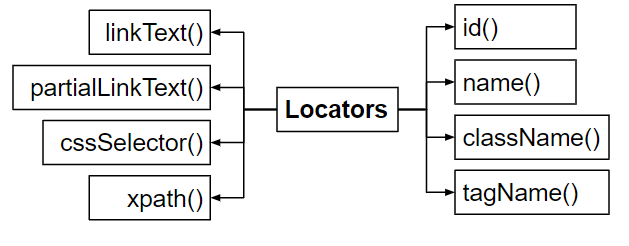
SELENIUM LOCATORS- Part I


 SELENIUM LOCATORS


  • They are used for identify the web elements uniquely within a webpage .
  • we can identify the web elements uniquely  using different types of locators.

Find Web Elements using Selenium WebDriver - GeeksforGeeks

Saturday, September 26, 2020

Robot Framework Test Automation [Part-I]


                   Selenium Python Robot Framework | Selenium Master        

ROBOT FRAMEWORK

  • Robot Framework is a generic  test automation framework mainly used for  acceptance testing 
  • It mainly utilizes the keyword driven testing approach .
  • Provides test Libraries  implemented either with the python or java and users can create  higher level keywords from existing ones.

Install python :
        you can download the latest python version from https://www.python.org/downloads.After                 `   installing the python set the path of  script folder  in python to the enviornmental variables.

          For Example :

            C:\Users\Admin\AppData\Local\Programs\Python\Python38-32\Scripts. After that go to                         command Prompt  and give the following commands and check the python is properly installed.

Install Pycharm :

         you can download the latest pycharm version from https://www.jetbrains.com/pycharm/ and                  download  the community edition.

Install Selenium :

        For installing selenium give the following command on  the command Prompt pip install                  selenium.


Install Robot framework:

  •       For installing robot framework give the following command to command Prompt
                pip install robotframework 
                
  •         After installing the robot framework we can check the details  of  framework by      using the command pip show robotframework
  •      For upgrading the framework we use pip install --upgrade robotframework